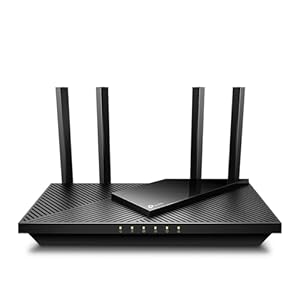
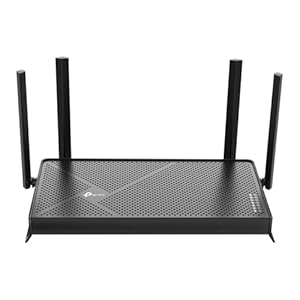
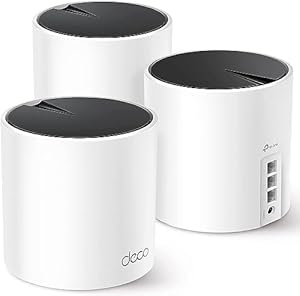
A weak WiFi signal can turn even a fast internet plan into a frustrating experience. Dead zones, buffering videos, and dropped video calls are symptoms of poor wireless coverage—not necessarily a slow connection. The good news is that most WiFi problems have straightforward solutions.
Whether you're working from home, streaming in 4K, or gaming online, these 15 proven tips will help you get the most out of your wireless network.
15 Proven Ways to Boost Your WiFi Signal
1. Optimize Your Router Placement
Router placement is the single most impactful factor in WiFi performance. Place your router in a central, elevated location—ideally on a shelf or mounted on a wall at chest height. Avoid tucking it inside cabinets, behind TVs, or in closets where physical barriers weaken the signal.
WiFi signals radiate outward in all directions from the router. A centrally placed router ensures more even coverage throughout your home. If your router is in a corner, half of your signal strength is literally going outside.
2. Keep Your Router Away from Interference
Several household items can interfere with WiFi signals. Microwave ovens, cordless phones, baby monitors, and Bluetooth devices all operate on similar frequencies. Keep your router at least 3–5 feet away from these devices.
Dense materials also block signals: concrete walls, metal appliances (especially refrigerators), aquariums, and mirrors can significantly reduce signal strength. If your router is near any of these, relocating it even a few feet can make a noticeable difference.
3. Update Your Router Firmware
Router manufacturers regularly release firmware updates that improve performance, fix security vulnerabilities, and optimize signal handling. Many people never update their router after initial setup, missing out on meaningful improvements.
Log into your router's admin panel (usually at 192.168.1.1 or 192.168.0.1) and check for firmware updates. Some newer routers support automatic updates—enable this feature if available.
4. Switch to the 5 GHz Band
Most modern routers are dual-band, broadcasting on both 2.4 GHz and 5 GHz frequencies. The 5 GHz band offers faster speeds and less congestion, though it has a shorter range than 2.4 GHz.
For devices in the same room or nearby rooms as your router, connect them to the 5 GHz network. Reserve the 2.4 GHz band for devices that are farther away or don't need high speeds, like smart home sensors.
5. Change Your WiFi Channel
WiFi routers broadcast on specific channels within their frequency bands. In apartment buildings and dense neighborhoods, neighboring networks can cause congestion on popular channels. Use a WiFi analyzer app (available free for most smartphones) to identify which channels are least crowded in your area.
For the 2.4 GHz band, channels 1, 6, and 11 are non-overlapping—pick whichever has the least competition. For 5 GHz, there are many more channels available, so congestion is less common.
6. Upgrade to a Mesh WiFi System
If your home is larger than about 1,500 square feet or has multiple floors, a single router may not provide adequate coverage. Mesh WiFi systems use multiple nodes placed throughout your home to create a seamless wireless network.
Unlike traditional range extenders, mesh systems maintain a single network name and automatically route your device to the nearest node. Popular options include Google Nest WiFi, Eero, and TP-Link Deco systems, ranging from $150 to $500 depending on coverage needs.
7. Use a Range Extender for Targeted Dead Zones
If you have just one or two dead zones and don't want to invest in a full mesh system, a WiFi range extender can help. Place it halfway between your router and the dead zone for best results.
Keep in mind that range extenders typically reduce throughput by about 50% since they communicate with both your devices and the router on the same channel. They're a good budget solution but not ideal for bandwidth-heavy activities.
8. Use Ethernet for Stationary, High-Bandwidth Devices
Not everything needs to be wireless. Connecting stationary devices like gaming consoles, desktop computers, smart TVs, and streaming boxes via Ethernet cable provides the most reliable, fastest connection possible. This is especially important for online gaming where latency matters.
As a bonus, every device you move to Ethernet frees up WiFi bandwidth for your mobile devices.
9. Upgrade Your Router's Antennas
If your router has removable external antennas, you can replace them with higher-gain aftermarket antennas. Standard router antennas are typically 2–5 dBi; upgrading to 9–12 dBi antennas can meaningfully extend range in one direction.
Note that higher-gain antennas focus the signal in a flatter, wider pattern rather than amplifying it in all directions. Position them based on where you need coverage most.
10. Enable Quality of Service (QoS)
QoS settings let you prioritize certain types of traffic on your network. If video calls keep dropping while someone else streams Netflix, QoS can allocate more bandwidth to video conferencing.
Access QoS settings through your router's admin panel. Most modern routers offer simplified QoS that lets you drag and drop device or application priority.
11. Reboot Your Router Regularly
Restarting your router clears its memory, resets connections, and can resolve slowdowns caused by memory leaks or accumulated errors. If you notice gradual WiFi degradation over days or weeks, a simple reboot often fixes it.
Many routers allow you to schedule automatic reboots during off-hours (like 3 AM). Check your router's settings for this option.
12. Secure Your Network
An open or weakly secured WiFi network invites unauthorized users who consume your bandwidth. Use WPA3 encryption if your router supports it, or WPA2 at minimum. Choose a strong, unique password.
Check your router's connected devices list periodically to identify any unknown devices. If you find unauthorized connections, change your WiFi password immediately.
13. Reduce the Number of Connected Devices
Every connected device consumes a share of your router's processing capacity and available bandwidth. The average household now has over 20 connected devices. Disconnect or disable WiFi on devices that don't need it, and consider whether every smart home gadget is actually necessary.
If you have many IoT devices, set up a separate guest network for them to keep your primary network less congested.
14. Upgrade Your Router
If your router is more than 4–5 years old, it may not support current WiFi standards. WiFi 6 (802.11ax) routers handle more simultaneous connections more efficiently and offer better performance in crowded networks.
WiFi 6E and WiFi 7 routers add the 6 GHz band, which is virtually congestion-free. However, your devices also need to support these standards to benefit.
15. Run a Speed Test to Diagnose Issues
Before and after making changes, run a speed test to measure your actual performance. Test from multiple locations in your home to map out your coverage.
Compare your results to what your internet plan promises. If wired speeds match your plan but WiFi speeds are significantly lower, the problem is your wireless setup. If wired speeds are also slow, contact your internet provider.
How to Identify Your WiFi Problem
Not all WiFi issues have the same cause. Here's how to diagnose what's actually going wrong:
- Slow speeds everywhere: Likely a router issue or internet plan limitation. Try rebooting your router and running a wired speed test.
- Slow speeds in certain rooms only: Coverage issue. Focus on router placement, mesh systems, or extenders.
- Intermittent disconnections: Often caused by interference, outdated firmware, or an overloaded router.
- Slow speeds at certain times: Network congestion, either on your home network or your ISP's network during peak hours.
When to Contact Your Internet Provider
If you've tried these tips and still experience poor performance, the issue may be on your provider's end. Contact your ISP if:
- Wired speed test results are consistently well below your plan's advertised speeds
- You experience frequent outages or disconnections that aren't related to your equipment
- Your modem shows error lights or logs excessive connection drops
- Speeds are normal during off-peak hours but dramatically slower during evenings
Frequently Asked Questions
Does aluminum foil behind a router actually improve WiFi?
It can redirect the signal in a specific direction, acting as a crude reflector. However, it won't increase your total signal strength—it will reduce coverage in the opposite direction. This trick is only useful if you need to focus coverage toward one area and don't care about coverage behind the router.
How often should I replace my router?
Every 4–5 years is a reasonable replacement cycle for most users. WiFi standards improve significantly in that timeframe, and older routers may not receive security updates. If you have a WiFi 5 (802.11ac) router, upgrading to WiFi 6 or 6E will provide noticeable improvements.
Is a mesh WiFi system worth the cost?
For homes larger than 1,500 square feet or multi-story homes, mesh systems are usually worth the investment. They provide more consistent coverage than a single router with extenders. For smaller apartments or homes, a well-placed single router is typically sufficient.
Do WiFi boosters really work?
WiFi range extenders (boosters) do extend your network's reach, but they typically cut throughput in half because they use the same channel to communicate with both your router and your devices. Mesh systems are a better solution for whole-home coverage. Extenders work best for adding coverage to a single room or area.
Why is my WiFi slow even though my internet plan is fast?
Your internet plan speed is the maximum speed delivered to your modem. WiFi performance depends on additional factors: distance from router, physical obstructions, interference from other devices, the age and capabilities of your router, and how many devices are connected simultaneously. A wired connection will almost always be faster than WiFi.
Should I use my ISP's router or buy my own?
Buying your own router typically provides better performance and features than ISP-provided equipment. You'll also save the monthly rental fee (usually $10–15/month). However, if your ISP provides a modem-router combo and you buy a separate router, you'll need to put the ISP device in bridge mode to avoid double NAT issues.
Advanced WiFi Optimization Techniques
Beyond the basic tips, these advanced strategies can significantly improve WiFi performance throughout your home.
WiFi Channel Optimization
WiFi routers broadcast on specific channels, and interference from neighboring networks can degrade performance. Most routers default to automatic channel selection, but manually choosing the least congested channel can help, especially in apartments and dense neighborhoods.
- 2.4 GHz band — Channels 1, 6, and 11 are the only non-overlapping channels. Use a WiFi analyzer app (like WiFi Analyzer on Android or NetSpot on Mac/PC) to see which channel your neighbors are using, then choose the least congested one.
- 5 GHz band — Has many more non-overlapping channels, so congestion is less common. If you experience interference, try switching to a DFS (Dynamic Frequency Selection) channel in the 5 GHz range, which is often less crowded.
- 6 GHz band (WiFi 6E/7) — If you have a WiFi 6E or WiFi 7 router and compatible devices, the 6 GHz band offers the least congestion of all. Few consumer devices currently use this band, making it virtually interference-free.
Router Placement Science
Router placement is the single most impactful factor in WiFi performance, yet most people get it wrong. Follow these placement principles:
- Central location — Place the router as close to the center of your living space as possible. WiFi radiates outward in all directions, so a corner placement wastes half of the signal outside your home.
- Elevated position — WiFi signals propagate slightly downward. Place the router on a high shelf or mount it on a wall at 5-6 feet height for best coverage.
- Away from interference sources — Keep the router at least 3 feet from microwaves, baby monitors, Bluetooth devices, cordless phones, and other electronics that operate on the 2.4 GHz frequency.
- Avoid enclosed spaces — Do not put the router inside a cabinet, closet, or media center. The surrounding materials block and weaken the signal.
- Away from metal and water — Metal reflects WiFi signals and water absorbs them. Avoid placement near large metal objects (filing cabinets, refrigerators) or aquariums.
When to Replace Your Router
If you have optimized placement and channel settings but still experience poor performance, your router hardware may be the bottleneck:
| WiFi Standard | Year Introduced | Max Speed | Recommendation |
|---|---|---|---|
| WiFi 4 (802.11n) | 2009 | 600 Mbps | Replace immediately |
| WiFi 5 (802.11ac) | 2014 | 3.5 Gbps | Replace if issues persist |
| WiFi 6 (802.11ax) | 2020 | 9.6 Gbps | Current standard — keep |
| WiFi 6E | 2022 | 9.6 Gbps (+ 6 GHz) | Premium option — worth it for 15+ devices |
| WiFi 7 (802.11be) | 2024 | 46 Gbps | Future-proof but expensive |
If your router is more than 5 years old (WiFi 5 or older), upgrading to a WiFi 6 model will likely provide the single biggest improvement to your WiFi experience. WiFi 6 handles multiple simultaneous connections far better than previous standards through a technology called OFDMA (Orthogonal Frequency-Division Multiple Access).
QoS (Quality of Service) Settings
Most modern routers include QoS settings that let you prioritize certain types of traffic. This is particularly useful in busy households where multiple people compete for bandwidth:
- Prioritize video calls — Set work-from-home video conferencing as high priority to prevent freezing during calls
- Prioritize gaming — Reduce lag by giving gaming traffic priority over background downloads
- Limit bandwidth-heavy devices — Cap speeds on devices that do not need full bandwidth (smart speakers, IoT sensors)
Frequently Asked Questions
Does a WiFi extender actually help?
WiFi extenders (repeaters) can help extend coverage to dead zones, but they typically cut throughput in half because they receive and retransmit on the same channel. A mesh WiFi system is a better solution because mesh nodes communicate on a dedicated backhaul channel, maintaining full speeds throughout the network.
Why is my WiFi slow even though the router is close?
Several factors beyond distance affect WiFi speed: interference from neighboring networks, the WiFi standard of your device (older devices cap out at lower speeds), the number of devices connected, the channel congestion level, and whether the router firmware is up to date. Run a speed test on a wired Ethernet connection to determine if the issue is WiFi-specific or your internet plan itself.
Should I use a WiFi 6 router with a 100 Mbps internet plan?
Yes. Even if your internet plan is only 100 Mbps, a WiFi 6 router handles multiple devices more efficiently, reduces latency, and improves performance for local network tasks (file transfers between devices, streaming from a NAS). The router does not increase your internet speed beyond what your ISP provides, but it ensures your devices receive the full speed you are paying for.
How often should I restart my router?
Restarting your router once every 1-2 months clears the memory cache, refreshes connections, and can resolve slow performance. Some routers have a scheduled reboot feature — set it for a time when no one is using the internet (e.g., 4 AM). If you need to restart frequently (weekly or more), the router may need a firmware update or replacement.
For more networking guidance, see our best modem-router combos guide, our home network setup guide, or explore our quick internet selection guide to make sure you have the right internet plan for your needs.
Sources & Methodology
This article uses data from FCC Broadband Data Collection reports, U.S. Census Bureau demographics, and verified provider pricing and plan information. Pricing, speeds, and availability are verified against provider broadband nutrition labels and may vary by location. For a detailed explanation of our data collection and scoring process, see our methodology page.
Data Sources
- FCC Broadband Data Collection
- U.S. Census Bureau American Community Survey
- USAC Universal Service Fund
- NTIA Internet Use Survey
Last verified: March 2026. InternetProviders.ai is an independent resource. We may earn commissions from partner links — this does not affect our editorial recommendations. See our methodology for details.